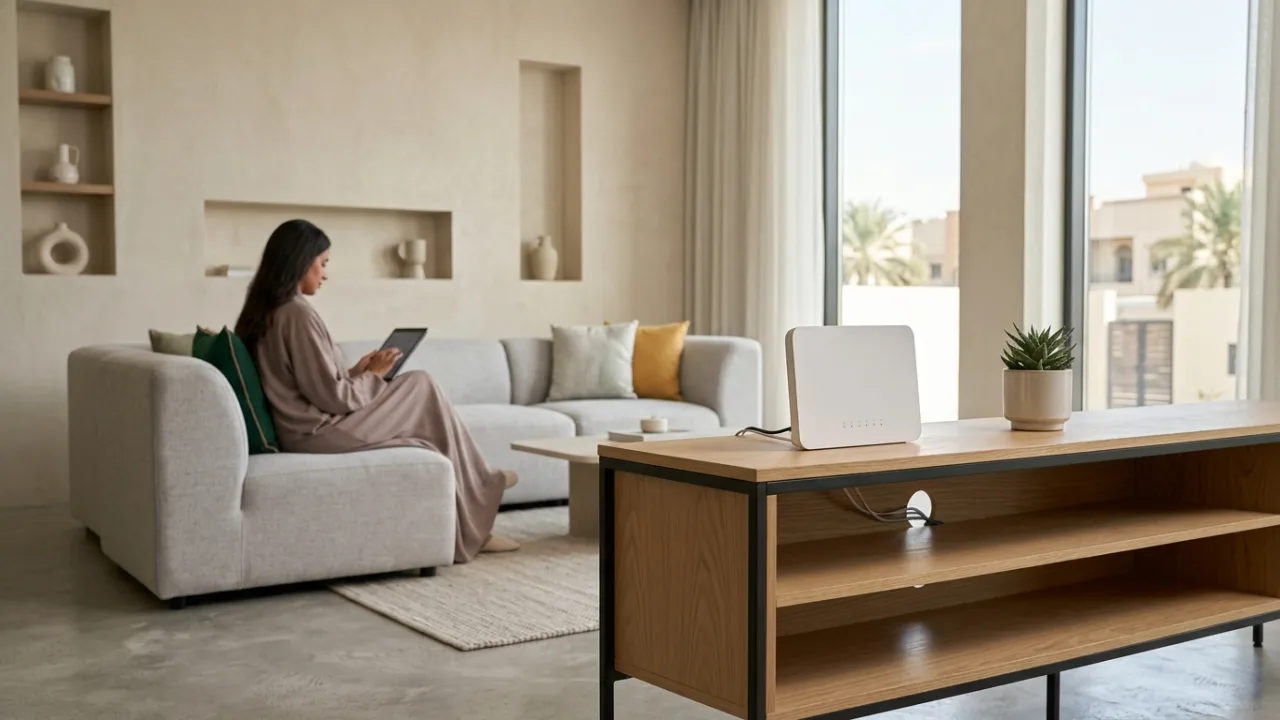
Weak Wi-Fi in one room does not always mean your Salam internet plan is too slow. Router placement, thick walls and simultaneous devices can create weak spots. Try a more central location and consider mesh coverage for larger homes before paying for a faster line.
Learn the difference between in-home Wi-Fi limitations and the actual internet connection, then compare Salam plans if an upgrade is genuinely needed.
- Separate internet access from Wi‑Fi
- Aim for a central location
- Height and open space
- Walls, metal and interference
- Wi‑Fi bands
- Large and multi-floor homes
- Mesh, access points and FTTR
- Room-by-room testing
- When not to upgrade the plan
- Quick improvement checklist
1. Separate access from Wi‑Fi#
Test near the router or over Ethernet where practical. If the baseline is healthy but distant rooms are poor, focus on the home network first.
2. Aim for a central location#
A central position usually helps Wi‑Fi distribution. With 5G home internet, balance this against the router's radio reception from the mobile network.
3. Height and open space#
Keep the router reasonably elevated and in open space. Avoid closed cabinets and large nearby metal objects.
4. Walls, metal and interference#
Every home is architecturally unique, especially in Saudi Arabia where reinforced concrete walls, dense brickwork, and structural pillars are standard construction. Radio waves at 5 GHz and 6 GHz experience significant attenuation when traveling through solid masonry, tinted glass, mirrors, and tiled surfaces. Furthermore, proximity to large metal appliances (such as refrigerators in kitchens) or heavy electrical conduits can generate electromagnetic noise. There is no magical "wall count" formula that applies universally; empirical testing in each living space provides the only dependable truth.
5. Wi‑Fi bands#
2.4 GHz generally reaches farther through solid barriers but offers limited bandwidth and suffers heavy congestion from neighboring networks and Bluetooth devices. 5 GHz provides significantly higher data throughput and lower latency at shorter line-of-sight ranges. 6 GHz adds wider, pristine channels on compatible Wi‑Fi 6E/7 routers and client devices. Enable automated band steering when your router and devices support modern roaming protocols (802.11k/v/r), and avoid pinning client devices to specific frequencies unless dedicated testing demands it.
6. Large and multi-floor homes#
A single centralized router rarely provides uniform high-speed coverage across multi-story villas or spacious apartments exceeding 200 square meters. Before purchasing generic plug-in range extenders that cut throughput in half, map out your floor plan, note high-priority workstations and entertainment areas, and verify whether structured Cat6 Ethernet conduits are available between floors for wired backhaul.
7. Mesh, access points and FTTR#
When single-router coverage reaches its physical limit, choose the appropriate scaling architecture:
- Mesh Wi-Fi Systems: Multiple coordinated nodes that share a single network SSID and hand off devices seamlessly throughout the home.
- Dedicated Wired Access Points (APs): The gold standard for stability and speed, connecting directly to the main router via Gigabit Ethernet cabling.
- Fiber-to-the-Room (FTTR): Transparent micro-optical fiber deployed directly to individual rooms, eliminating radio attenuation entirely where FTTR packages are available.
8. Room-by-room testing#
Establish an accurate diagnostic baseline by using the same modern test device across all rooms. Test speeds and packet latency in your primary workspace, gaming zone, family living area, and remote bedrooms rather than relying exclusively on readings next to the router. Conduct separate tests during quiet daytime hours and peak evening household usage, and always measure via an Ethernet connection first to isolate ISP line speed from wireless transmission losses.
9. When not to upgrade the plan#
If internet speed tests yield 300 Mbps when standing beside your router but plummet to 15 Mbps in an upstairs bedroom, paying for a 500 Mbps or 1 Gbps fiber subscription will not resolve the bottleneck. The access link to your premises is already performing as contracted; the issue is wireless signal degradation across interior walls. Investing in router repositioning, a mesh system, or an Ethernet drop will solve the coverage deficit without inflating your monthly subscription fees.
10. Quick improvement checklist#
Review this structured action checklist to optimize your home Wi-Fi before requesting plan modifications:
- Elevate and centralize: Place the router on an open table or shelf 1 to 1.5 meters above the floor near the geometric center of your active living spaces.
- Clear immediate obstructions: Ensure at least 1 meter of clearance around the router, avoiding closed TV consoles, metal shelves, and dense cabinetry.
- Isolate access from Wi-Fi: Connect a laptop directly to the router with an Ethernet cable to verify true subscribed speed from the ONT or 5G modem.
- Audit priority rooms: Benchmark Wi-Fi signal strength and latency in work and streaming zones using dedicated speed testing tools.
- Separate interference sources: Keep the router away from microwave ovens, wireless cordless phones, power strips, and baby monitors.
- Leverage wired backhaul: Connect gaming consoles, smart TVs, and desktop PCs via Ethernet cables to preserve wireless spectrum for mobile devices.
- Deploy Mesh or FTTR systematically: If concrete walls prevent signal penetration to remote wings, install a coordinated mesh solution or FTTR rather than cheap repeating plugs.
Draw a simple home coverage map#
Before buying Mesh hardware or replacing the router, sketch the property and mark four things:
- internet/ONT entry point;
- current router location;
- priority rooms such as office, TV and gaming areas;
- walls or floors between them.
Test each room with the same device and label it simply: strong, acceptable, unstable or weak. This map is more useful than one speed-test screenshot because it shows where the problem begins.
| Zone | Relative position | Important use | What to observe |
|---|---|---|---|
| Home office | — | calls and uploads | stability and upstream behavior |
| Living room | — | TV and streaming | busy-period performance |
| Gaming area | — | online games | Ethernet versus Wi‑Fi |
| Remote room | — | daily use | dropouts and consistency |
Do not hide the router in the worst radio location#
A common home-network mistake is treating the router as something that must disappear. It ends up inside a TV cabinet, behind a large screen, below metal furniture or in an entrance closet. Every room then pays for the aesthetic decision.
If appearance matters, solve it without suffocating the radio: an open shelf, a longer Ethernet run to a better position, or a properly placed access point can preserve the room design and the network.
Move the router one variable at a time#
Use a controlled test:
- record a baseline in the current position;
- move the router to a more open candidate location;
- do not change channels and band settings at the same time;
- repeat the same room tests;
- if priority rooms improve, keep the position before making further changes;
- if they do not, return to the map and consider a second distribution point.
That tells you whether placement actually caused the improvement.
Backhaul determines how good a multi-node network can be#
Mesh nodes and access points need a connection back to the main network. That link is the backhaul. It may be wireless or wired depending on the system.
The key user lesson is simple: an extra node cannot create strong capacity from an already weak upstream connection. Place wireless Mesh nodes where they still have a healthy link to the previous node, or use Ethernet backhaul when the property supports it.
Mesh or wired access points?#
Mesh often fits households that want unified management and several coordinated nodes without a complex network design.
Wired access points are strong when structured Ethernet already exists and each radio can connect directly to the network.
Range extenders may help a small dead zone, but placement matters and they should not be assumed to preserve full capacity.
FTTR is a separate in-home fiber approach whose suitability depends on availability and the current offer.
Choose from the property layout, cabling, budget, device mix and priority rooms—not from the technology name alone.
Keep fixed devices off Wi‑Fi when wiring is practical#
A stationary TV, console, desktop or work dock does not necessarily need to compete with phones and tablets for airtime. If a clean Ethernet route exists, wiring fixed devices can reduce wireless load and leave Wi‑Fi for devices that actually move.
K18 covers this choice in detail.
Multi-floor homes need a floor-by-floor plan#
A powerful router on the ground floor is not a guaranteed substitute for distribution. Reinforced floors can attenuate radio signals more than several lightweight walls.
Treat each floor as a coverage zone and ask:
- Can Ethernet run between floors?
- Is there a safe central position on each floor?
- Can Mesh nodes get a healthy backhaul?
- Are important rooms clustered or widely separated?
- Do outdoor or annex areas need coverage too?
Planning these questions is usually more efficient than buying several unrelated devices and trying to combine them later.
Measure before and after#
After any placement or network change, compare using:
- the same device;
- the same room;
- similar timing;
- the same type of test;
- download, upload and latency observations;
- one real application test.
Do not chase the highest isolated number. Look for fewer weak zones and more consistent experience.
When replacing the router makes sense#
Placement cannot fix every limitation. Review the router itself when:
- modern client devices support a clearly newer Wi‑Fi generation;
- a large device count causes instability under load;
- Ethernet port capability limits the network you want to build;
- required Mesh or management features are missing;
- the unit has recurring faults or abnormal reboots.
But test placement and a wired baseline first. Sometimes the most effective network upgrade costs nothing more than moving the router.
Practical Wi-Fi Layout Strategies for Saudi Villas and Apartments#
Residential buildings in Riyadh, Jeddah, Dammam, and across Saudi Arabia present distinct structural challenges for wireless signals—most notably thick reinforced concrete walls, steel-reinforced floor slabs, recessed metal telecom cabinets, and separate courtyard majlis rooms. Tailoring your router placement to your specific floor plan prevents dead zones without unnecessary plan upgrades:
- Long-Corridor Apartments with Entrance Telecom Boxes: In many modern apartments, the fiber pull box is recessed inside a metal wall enclosure right by the front door, while bedrooms lie down a long concrete corridor. Leaving the Wi-Fi router shut inside that metal cabinet blocks 5 GHz signals immediately. Instead, mount or place the router outside the metal enclosure on an open shelf, or run an Ethernet cable through the wall conduit to a central living-room position.
- Multi-Story Concrete Villas and Duplexes: Reinforced concrete slabs between the ground floor, first floor, and rooftop annex absorb a high percentage of vertical Wi-Fi energy. Rather than expecting a single ground-floor router to reach upstairs bedrooms at full speed, connect upstairs Mesh nodes or access points using in-wall Cat6 Ethernet ports (wired backhaul) so each floor enjoys its own clean wireless zone.
- External Majlis, Diwaniya, and Courtyard Seating: Trying to cover an external majlis from a router sitting inside the main house forces the signal through exterior load-bearing walls and thermal-coated windows. Running a protected Ethernet cable through existing courtyard conduits to a dedicated access point inside the majlis ensures smooth 4K live sports streaming and low-latency console gaming.
- Avoiding Interior Signal Traps (Mirrors, 75-Inch TVs, and Metal Doors): Large decorative wall mirrors contain metallic backing that reflects radio waves, and massive flat-screen TVs act as dense electromagnetic shields. Keep your router elevated on an open surface with clear sightlines rather than tucked behind a television screen or inside a closed wooden sideboard.
Diagnostic Decision Table: Fix Placement, Add Nodes, or Upgrade Plan?#
Use this comparison matrix to decide whether your household needs a free placement adjustment, indoor distribution hardware, or a higher Salam speed tier on /packages:
| Household Symptom | Primary Physical Cause | Most Effective Practical Solution | Should You Upgrade Your Plan on /packages? |
|---|---|---|---|
| Fast speed in the lounge, dropouts in back bedrooms | 5 GHz attenuation across two or three concrete walls | Move router to a central open hallway/lounge or add a properly placed Mesh node | No; the incoming line is healthy and the issue is indoor reach. |
| Weak signal on the second floor or rooftop annex | Heavy reinforced concrete floor slabs blocking vertical radio paths | Connect an upstairs Mesh node or wired Access Point via Cat6 Ethernet backhaul | No; unless concurrent family usage also saturates the line. |
| Buffering on the external majlis TV during live matches | Exterior masonry walls, thermal glass, and courtyard distance | Extend a wired Ethernet drop or dedicated Mesh point into the majlis | No; extending local coverage solves the bottleneck directly. |
| Slow speeds everywhere, even over Ethernet next to the router | Total household concurrent load exceeding your current plan tier | Compare higher Salam Fiber or 5G speed tiers on /packages and /compare | Yes; when the wired baseline saturates during evening peak hours, a faster tier helps. |
How to Diagnose and Choose the Right Salam Setup on Tayf Connect#
Before spending money on a higher monthly subscription or random networking gadgets, follow this sequence on Tayf Connect:
- Run a Wired or Next-to-Router Baseline Test: Measure your speed and latency right beside the router during evening peak hours. If performance is strong there but weak in distant rooms, apply the placement and Mesh steps in this guide first.
- Check Address Coverage if Switching Services (/coverage): If your current connection is genuinely unstable at the source, verify your building's eligibility for Salam Fiber or Salam HomeFi 5G on /coverage.
- Review Plan Speeds and Included Router Specs (/packages, /fiber, /5g): Inspect documented download/upload speeds, VAT-inclusive monthly pricing, promotional vs post-offer rates, commitment length, and router capabilities.
- Consult Tayf Connect Before Ordering (/contact): If you want help separating an indoor Wi-Fi coverage problem from a subscription capacity decision, reach out via /contact with your property type and active device count.
Frequently Asked Buyer Questions (FAQ)#
Does leaving the router inside the recessed metal wall box hurt Wi-Fi coverage?#
Yes, severely. A closed metal telecom box acts as a Faraday shield that blocks radio waves and traps heat during warm months. Even if the optical ONT stays inside the wall enclosure, place the main Wi-Fi router outside in an open area or connect it to in-wall Ethernet ports feeding your living spaces.
Should I connect my household devices to the 2.4 GHz or 5 GHz Wi-Fi band?#
Use 5 GHz (or allow automatic Band Steering) for high-bandwidth activities like 4K streaming, online gaming, and video calls in rooms with good coverage, as it offers much higher speed and less interference. Reserve 2.4 GHz for smart-home sensors or distant corners where range matters more than raw throughput.
Why do cheap plug-in Wi-Fi extenders often make video calls and gaming worse?#
Basic single-radio extenders must listen to the router and retransmit to your device on the same wireless channel, which cuts available airtime roughly in half and adds noticeable latency jitter. Worse still, users often plug them into dead zones where the extender itself receives a weak signal. A coordinated Mesh system or wired access point is far more reliable.
How do I balance cellular reception and Wi-Fi coverage with a HomeFi 5G router?#
With Salam HomeFi 5G, always prioritize strong 5G cellular reception first—usually near an unobstructed window. If that window is at one end of a large apartment or villa, keep the 5G router there and connect a Mesh system or Ethernet cable to carry Wi-Fi into the rest of the home.
Conclusion#
Home Wi‑Fi design is part of internet quality. Improve placement and distribution before paying for more access capacity that may never reach the rooms that need it.
Internal links#
/support · /coverage · K11 · K15 · K16 · K17 · K19
Editorial source review#
Review current Wi‑Fi Alliance terminology and the capabilities of the actual governed router/equipment before making device-specific claims.