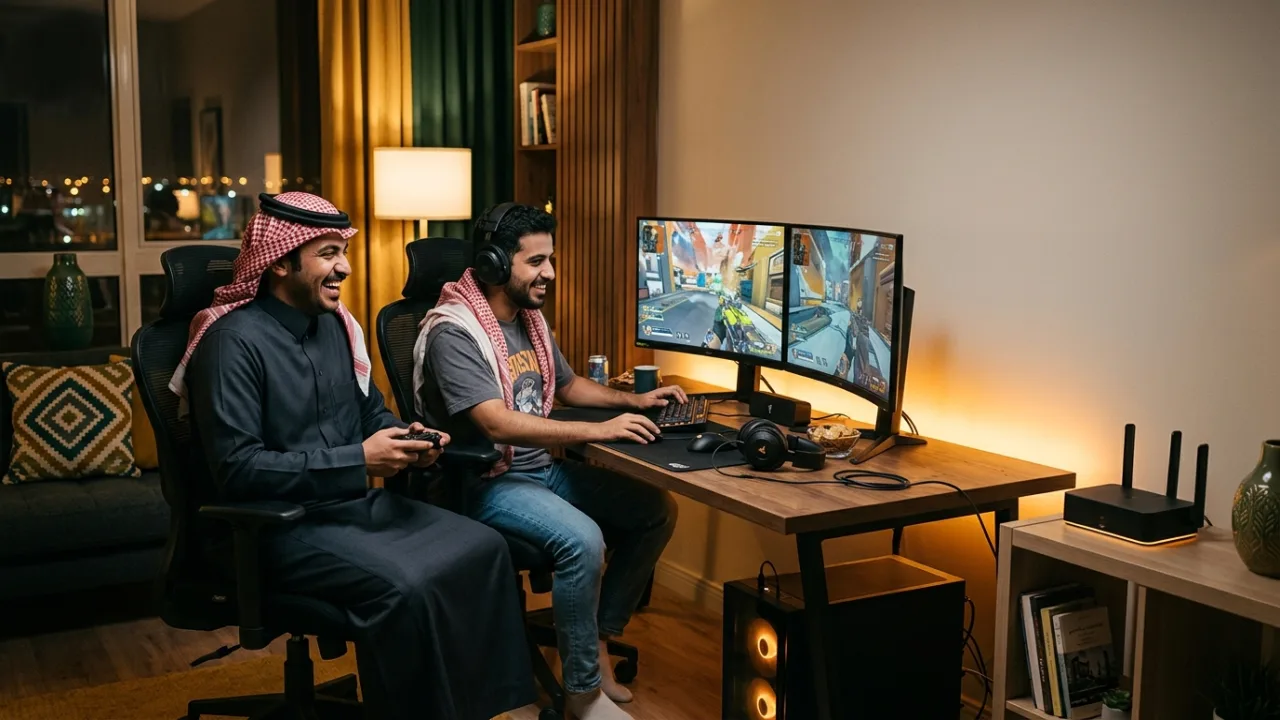
Choosing Salam internet for gaming is about connection consistency and latency, not just download speed. Ethernet can help, while your game server location, household traffic and wireless signal also affect responsiveness. Fiber is worth comparing where coverage exists, but no plan guarantees a fixed ping to every game.
Check Salam availability and compare eligible plans before switching.
- Speed vs latency
- Ping
- Jitter and packet loss
- Ethernet vs Wi‑Fi
- Household traffic
- Game server and external path
- Fiber vs 5G
- Router/QoS
- Troubleshooting
- Choosing a plan
1. Speed vs latency #
Download capacity is crucial for rapidly downloading 100 GB game installations and multi-gigabyte seasonal patches. However, during active competitive gameplay, the actual bandwidth consumed by game telemetry is tiny—typically between 3 Mbps and 10 Mbps, consisting of lightweight 100-to-300-byte packets sent 30 to 128 times per second (tick rate). Responsive, lag-free gameplay depends almost entirely on round-trip latency (ping), bufferbloat control, and packet arrival consistency rather than raw gigabit headlines.
2. Ping #
Ping measures the round-trip network transit time (in milliseconds) required for an action command to travel from your gaming rig to the host game server and return with server confirmation. Ping is not a static number or an attribute of the router itself; it is determined by geographic distance, optical routing paths, peering interchanges, and local home network congestion. Gaming on Gulf regional data centers (such as Riyadh, Bahrain, or Dubai) will yield substantially lower ping (often 10–25 ms) compared to distant European server clusters in Frankfurt or London (often 75–110 ms).
3. Jitter and packet loss #
Jitter is the variance in latency between consecutive packets. Packet loss occurs when network data fails to reach its destination and must either be discarded or resent. Even a seemingly minor 2% packet loss or a 20 ms jitter spike can produce noticeable character rubber-banding, delayed hit registration, and dropped voice chat frames—even when a standard browser speed test displays maximum download throughput.
4. Ethernet vs Wi‑Fi #
Connecting your gaming PC or console directly via a Cat6 or Cat6a Gigabit Ethernet cable provides a deterministic, interference-free baseline. Ethernet operates in full-duplex mode without wireless contention or radio collisions. Modern Wi-Fi standards (such as Wi-Fi 6 and Wi-Fi 7) are capable of high speeds, but wireless spectrum remains inherently half-duplex and susceptible to interference from physical walls, microwave appliances, and neighboring networks.
5. Household traffic and bufferbloat #
When multiple household members stream 4K video, conduct high-resolution video calls, or sync large cloud files simultaneously, unmanaged router buffers can fill up. This phenomenon—known as bufferbloat—causes gaming packets to wait in memory queues, spiking your in-game ping from 20 ms to 300 ms. Establishing a testing baseline during quiet network hours helps distinguish external ISP latency from internal household traffic saturation.
6. Game server and external transit paths #
If high latency or rubber-banding occurs exclusively in a single title or with a specific publisher’s matchmaking pool while other online multiplayer games perform flawlessly, the root cause usually lies with the external game server or regional CDN peering rather than your home connection. Test multiple games and regional server regions before assuming your subscription line has degraded.
7. Fiber vs 5G for gaming #
Direct Fiber-to-the-Home (FTTH) delivers an optical, physical medium that provides ultra-low jitter, symmetric upload rates, and immune resistance to atmospheric conditions. Fixed 5G home internet can also provide excellent gaming performance when situated in areas with exceptional line-of-sight signal quality, but cellular access remains shared wireless spectrum that can fluctuate during local tower peak load. TAYF never promises arbitrary, unverified ping guarantees; real-world performance depends on address coverage, tower capacity, and transit infrastructure.
8. Router configuration and Quality of Service (QoS) #
Advanced gaming routers feature Quality of Service (QoS) and Smart Queue Management (SQM) algorithms (such as CAKE or FQ-CoDel) that prioritize real-time gaming packets over bulk file transfers. If adjusting router settings, change only one parameter at a time, document your baseline metrics, and test against dedicated bufferbloat benchmarks rather than guessing.
9. Troubleshooting gaming network issues #
When encountering in-game latency spikes or connection drops, follow this structured diagnostic sequence:
- Switch to a wired Ethernet cable: Temporarily bypass Wi-Fi to isolate wireless packet loss from incoming ISP link quality.
- Pause background household uploads: Verify whether cloud sync services (iCloud, OneDrive, Google Photos) or torrents are saturating your upstream bandwidth.
- Benchmark against regional game servers: Test ping against Middle East servers versus European servers to determine whether transit distance is the bottleneck.
- Monitor packet loss metrics: Enable in-game network statistics overlays to track real-time packet loss percentages and packet round-trip times.
- Inspect local router temperature and placement: Ensure the ONT/router is properly ventilated and not thermal-throttling under heavy NAT load.
- Repeat tests across peak and off-peak hours: Compare morning gameplay stability with evening peak-usage hours (8 PM to 11 PM) to evaluate network load patterns.
- Document logs for customer support: Record timestamped ping logs and server IP addresses before contacting TAYF or ISP support for technical escalation.
10. Choosing the right internet package #
Select a broadband package that offers adequate symmetric speed for the entire household, not an overpriced plan relying on ambiguous "gaming speed" slogans. High upload speeds (at least 50 Mbps to 100 Mbps) are essential if you broadcast live gameplay to Twitch or YouTube. Prioritize fiber access whenever your address qualifies, and ensure your interior cabling supports low-latency transmission.
Build a gaming baseline before changing plans #
When a game stutters or latency jumps, do not begin with an upgrade. Build a baseline you can reproduce:
- Connect the console or PC by Ethernet where practical.
- Pause large downloads and uploads.
- Use the same game and server region.
- Record typical latency, visible jitter and any packet loss.
- Repeat at another time.
- Only then compare Wi‑Fi against the wired result.
If the problem disappears on Ethernet and returns on Wi‑Fi, you have useful evidence that the in-home network is part of the problem.
Speed and latency are different resources #
Large game downloads benefit from high throughput, but an active match exchanges small packets that must arrive consistently. A lower-capacity connection with stable delivery can feel better in a match than a faster connection with severe jitter or congestion.
Treat four dimensions separately:
- Download: important for game installs and patches.
- Upload: relevant to game traffic, voice and live streaming.
- Latency: round-trip delay.
- Jitter and loss: how much delay varies and whether packets disappear.
Increasing download capacity does not automatically improve the other three.
What if someone else starts a huge transfer? #
If gameplay deteriorates only when another device downloads or uploads heavily, test the network under load. Router queue management differs, and one transfer can sometimes fill a link enough to delay small latency-sensitive packets.
Possible actions include:
- scheduling heavy transfers;
- using useful QoS/SQM features when the router supports them;
- wiring the gaming device;
- improving Wi‑Fi distribution;
- moving to a more suitable capacity tier if repeated tests show genuine access saturation.
Change one variable at a time so you know what actually helped.
When Wi‑Fi can be suitable for gaming #
Modern Wi‑Fi can perform well when:
- the gaming device is reasonably close to the access point;
- signal quality is stable;
- the band is not heavily congested;
- the path does not cross several difficult barriers;
- router and client support suitable standards;
- wireless airtime is not overloaded.
For competitive use or a fixed gaming station with a clean cabling option, Ethernet remains an important baseline even if you later choose Wi‑Fi for convenience.
A speed test does not represent every game server #
The speed-test endpoint may be geographically closer and use a different route from the game server. Excellent speed-test latency therefore does not prove that every game path is equally good.
Combine:
- a speed test for general access health;
- ping or traceroute when appropriate;
- in-game network statistics;
- an Ethernet comparison;
- timestamps for the problem;
- whether other household devices are affected.
That turns “the ping is bad” into evidence that can be investigated.
NAT and port forwarding: avoid random security changes #
NAT does not automatically mean a broken gaming connection. Many games and platforms work with normal router defaults. Avoid opening arbitrary ports or placing a device permanently in a DMZ because of an old tutorial.
Start with current platform guidance, keep router software updated and change a setting only when the issue is identified and the security trade-off is understood.
Diagnostic scenarios #
Latency is high all day over Ethernet #
Compare multiple game destinations. If the pattern persists, keep measurements and use the provider/support path for further investigation.
Morning is healthy, evening is poor #
Record the pattern over several days. Both household load and upstream network conditions can vary; repeated evidence helps separate them.
The game is poor while video streaming looks fine #
That is possible. Games are more sensitive to path timing than buffered video or ordinary browsing.
Everything degrades when an upload starts #
Investigate upstream saturation and queue behavior rather than download speed alone.
Only one room is affected #
Return to K05, K16 and K17. The in-home wireless network is the first area to investigate.
Choose a gaming plan from evidence, not the label #
On /compare, look beyond the word “Gaming”. Check the published facts:
- download and upload;
- access type: fiber or 5G;
- commitment and post-promotion price;
- included equipment when explicitly stated;
- availability at your address;
- whether a gaming-specific benefit is documented or only marketing terminology.
The right package is the one that fits the workload and performs well in real tests.
Saudi Home Gaming Realities: Majlis Setups, Peak Hours, and Server Geography #
For gamers in Riyadh, Jeddah, Dammam, and across Saudi Arabia, real-world match quality is shaped by where the gaming setup sits inside the property, how the family uses the network at night, and which regional data center hosts the match:
- Upstairs Bedrooms and External Majlis Gaming Setups: Many Saudi gamers set up their PlayStation, Xbox, or gaming PC in an upstairs bedroom, rooftop annex, or external courtyard majlis, while the main router stays on the ground floor behind thick reinforced concrete walls. Playing over a weak Wi-Fi signal that crosses multiple masonry walls introduces micro-bursts of jitter and packet loss—causing delayed hit registration and rubber-banding even on a fast fiber line. Running a direct Cat6 Ethernet cable or linking a wired access point into the gaming room eliminates indoor radio loss completely.
- Evening Family Peak Load and 100 GB Seasonal Patches: Between 8 PM and midnight—and especially during summer holidays and Ramadan nights—household traffic peaks as multiple 4K TVs stream live football or series, phones back up photos to the cloud, and consoles download massive seasonal updates. Choosing a Salam Fiber tier with generous downstream and upstream headroom allows multi-gigabyte game updates to finish rapidly and keeps background family streaming from triggering router bufferbloat during competitive matches.
- Middle East Servers vs European Server Routing: When a title connects to Gulf data centers (such as Riyadh, Bahrain, or Dubai), geographic distance is short and a clean fiber connection delivers very low round-trip ping. When matchmaking places you on European servers (such as Frankfurt, Amsterdam, or London), packets must travel thousands of kilometers across terrestrial and submarine fiber corridors. No residential plan can bend the speed of light, so your goal is minimizing local jitter and packet loss rather than chasing impossible zero-ping marketing claims.
- Live Streaming to Twitch/YouTube and Discord Screen Sharing: Broadcasting 1080p60 or 1440p gameplay while playing online places a sustained load on your upload path. If upstream bandwidth is too tight, outbound game telemetry packets get queued behind video frames, causing immediate in-game lag spikes.
Practical Gaming Troubleshooting & Decision Table #
Use this reference table to pinpoint the real cause of in-game lag before changing your subscription:
| In-Game Symptom | Network Telemetry Indicator | Most Likely Household Cause | Recommended Practical Fix |
|---|---|---|---|
| Rubber-banding and delayed shots despite "good" average ping | Jitter spikes or 1%–5% packet loss in game overlay | Playing over Wi-Fi through concrete walls or using a cheap repeater | Connect the console/PC via Cat6 Ethernet cable or deploy a wired access point in the gaming room. |
| Ping is steady at 20 ms, then jumps to 250 ms randomly | Latency spikes whenever another family device streams or uploads | Router bufferbloat or upstream/downstream saturation | Enable QoS/SQM on the router, schedule big downloads, or compare higher tiers on /packages. |
| High ping in one specific game, low ping in all others | Stable line with 0% loss, but elevated base latency (80–110 ms) | Game matchmaking routed to a distant European or Asian server | Select the Middle East server region in game settings where available; your home line is healthy. |
| Smooth morning matches, unstable evening gameplay on 5G | Evening jitter increase and variable upstream throughput | Shared cellular sector peak load or suboptimal indoor 5G router spot | Reposition the 5G router for higher SINR, wire the console, and check /coverage for Salam Fiber eligibility. |
How to Compare and Select a Gaming-Ready Salam Plan on Tayf Connect #
Follow this four-step process on Tayf Connect to choose a broadband subscription backed by real specifications:
- Check Address Eligibility First (/coverage): Verify whether Salam Fiber is available at your building. Where optical fiber is active, it offers the most consistent latency and upload baseline for gaming households. If fiber is not yet available, check eligibility for Salam HomeFi 5G.
- Compare Download and Upload Capacities (/fiber, /5g, /packages): Select a speed tier that comfortably covers both your large game downloads and the rest of your household's simultaneous 4K streaming, paying close attention to published upload speeds if you stream gameplay.
- Review Full Commercial Terms (/compare): Check the monthly price inclusive of VAT, promotional duration versus post-offer base pricing, contract commitment period, and included router specifications.
- Ask Tayf Connect Before Submitting Your Request (/contact): Share your console/PC setup, household screen count, and coverage results with our team via /contact so we can help you start the right Salam subscription request.
Frequently Asked Buyer Questions (FAQ) #
Will subscribing to the highest megabit speed tier automatically give me 0 ms ping? #
No. Ping is the time light takes to travel to the game server and back, whereas megabit speed is the width of the data pipe. Once your connection has enough uncontested bandwidth for the game, upgrading from 500 Mbps to 1000 Mbps will not make Frankfurt or Bahrain physically closer—though it will download a 100 GB game update much faster and prevent family 4K streams from crowding your match.
Is Salam Fiber or HomeFi 5G better for competitive FPS and sports games? #
Whenever /coverage shows that Salam Fiber is available at your address, optical fiber is the preferred choice for competitive gaming because its dedicated physical line keeps jitter and upstream latency remarkably steady during evening peak hours. HomeFi 5G can still deliver enjoyable gaming where 5G signal quality is strong, especially when you place the router carefully and connect your console via Ethernet.
Why does my PlayStation or PC lag when a phone speed test in the living room looks fast? #
A phone speed test measures short burst download speed to a nearby server from the living room, whereas your console in an upstairs bedroom or majlis needs steady, uninterrupted packet delivery every millisecond. If the console relies on Wi-Fi passing through reinforced concrete walls, packet loss and jitter will ruin the match even while download speed looks high elsewhere.
Should I place my console in the router's DMZ or open random ports to fix lag? #
No. Placing a device in a DMZ exposes it directly to external network traffic without lowering geographic latency. Modern consoles and PC launchers handle NAT traversal automatically under normal router settings; focus on wired Ethernet cabling and preventing household bufferbloat first.
Conclusion #
Gaming quality is a chain from access network to router, device link, household load, transit path and game server. Diagnose the chain before paying for a bigger headline speed.
Internal links #
/coverage · /compare · K01 · K14 · K18 · K21
Editorial source review #
Avoid universal ping thresholds or game-specific bandwidth claims unless current authoritative documentation supports them.